
Appearance
Footer section group
Main section
Section settings
| Setting | Description | Image |
|---|---|---|
| Show grid outline | Displays visual outlines for grid areas and elements in the theme editor ⚠️ not visible to end users! | |
| Color scheme | Allows selection of a specific color scheme for the footer. | |
| Use global color scheme | Overrides the selected color scheme and applies the global color scheme to the footer when enabled. |
Menu block
Section Settings
| Setting | Description |
|---|---|
| Main navigation | Choose a menu from the available menus in the theme settings. If you want to display a multi-column menu, follow the instructions below. |
| Main block span | Controls how many of the 8 available columns the main content area occupies in the footer. You can select a value from 1 to 8 to adjust the menu’s width. |
Multi-Column Menu
| Setting | Description |
|---|---|
| Column span - desktop | Sets how many columns the menu occupies on desktop. Depends on the value set in Main block span. |
| Column span - mobile | Sets how many columns the menu occupies on mobile devices. Depends on the value set in Main block span. |
Single-row menu option
NOTE
To create a single-row (or single-line) menu, your menu items must all be top-level, with no nested items. Ensure your menu structure is set up correctly to display them in a single row.
Multi-column option
IMPORTANT
The multi-column menu option requires the use of nested menu items. Ensure your menu is set up properly.
🖼️ Screenshot
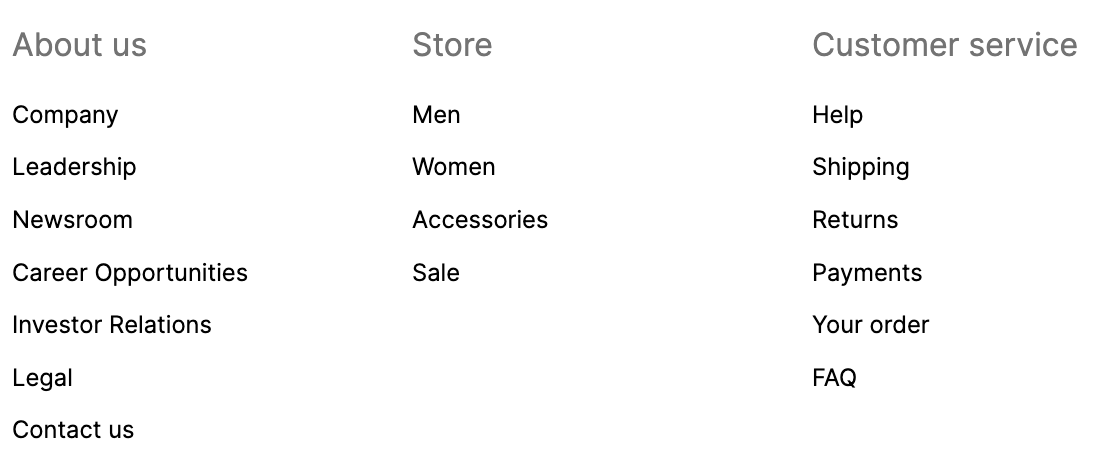
To enable the multi-column menu, create or adjust your menu items so they are nested below a top-level item.
Understand the menu structure
| Menu level | Description |
|---|---|
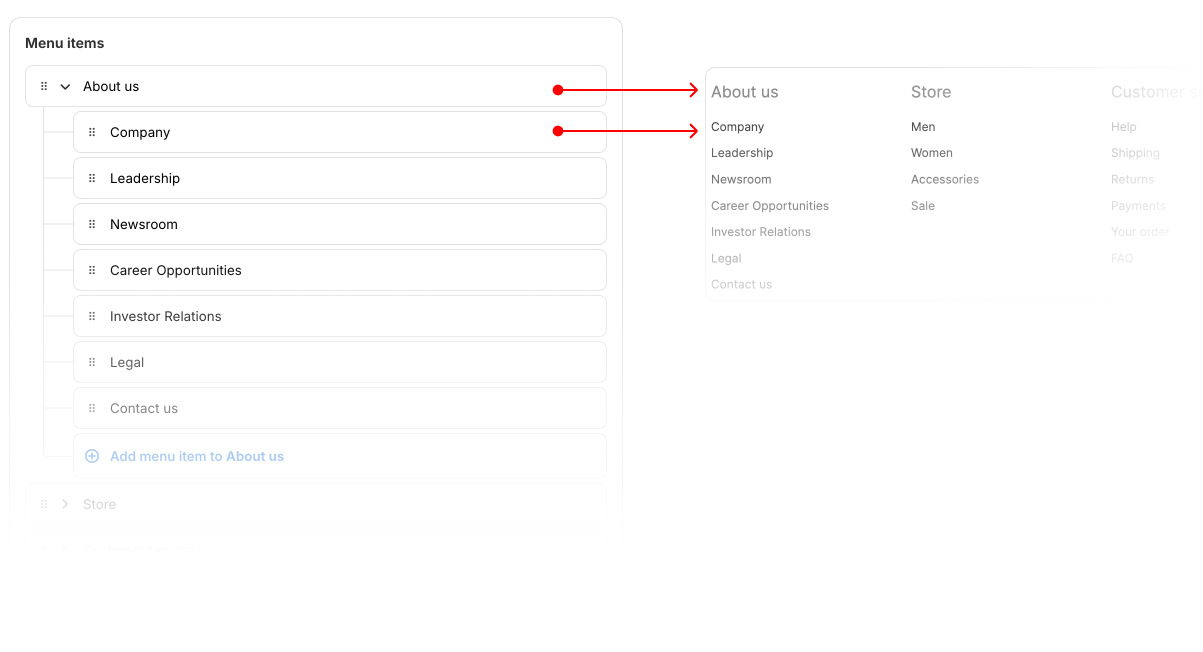
| Top-level | Acts as the title for the mega menu column. It's not clickable |
| 1st-level nested items | The actual menu links displayed under each column title. |
| You can display only one level of nested menu items beneath each top-level item. |
How to create a column with menu items
Choose one of your menu items to be the header for your column, or add a new menu item to be the header.
To add a menu item (link) to include in the column, complete the following steps:
- Click Add menu item
- In the
Namefield, enter a name for your menu item. - In the
Search or paste a linkfield, enter or select a destination for your menu item. - Click Add, and then click and drag the menu item to nest it below the header menu item.
Click Save menu
🖼️ Screenshot

WARNING
You can display only one level of nested menu items beneath each top-level item.
Bottom bar section
In the Bottom bar section, you can manage the following elements:
- Copyright
- Terms and Policies
- Powered by Shopify
These settings let you display or customize the text and links at the bottom of your store.