
Appearance
Bullet v6 upgrade guide
IMPORTANT
This is a non-backwards-compatible update. Your previous theme settings will NOT carry over. You'll need to rebuild your store manually using the Theme Editor.
CAUTION
Theme updates are NOT covered by OpenThinking support.
Welcome to Bullet v6; a ground-up architectural refresh that brings significant performance improvements, a cleaner customization experience, and a stronger foundation for everything we build next, but it also means your previous settings won't carry over automatically.
Upgrading requires rebuilding your theme from scratch in the theme editor. There's no automated migration path. This guide covers what changed and how to get your store set up in v6.
If you're not ready to upgrade yet, that's completely fine. Your current version will keep working as-is. When you're ready, start here ⬇️
TIP
Before you start, check the FAQ at the bottom of this page — your question may already be answered there.
Why This Upgrade Is Different
Bullet v6introduces a new settings architecture, new file structure, and new features that require a fresh setup.- Theme settings from previous versions cannot be migrated via JSON or file import.
- This change was necessary to support long-term speed, flexibility, and modular control.
IMPORTANT
Shopify can't carry over settings or custom setups. You'll need to manually update each setting after installing the new version.
IMPORTANT
If you or a developer edited core theme files, those changes won't transfer. You'll need to manually reapply them. Some custom code may also need to be adjusted due to changes in the updated theme.
Rebuild instructions
1. Duplicate current theme
Before doing anything else:
- From Shopify admin, go to Online Store → Themes
- Click ••• → Duplicate on your current Bullet theme
- This is your safety net — keep it available throughout the entire rebuild
2. Install Bullet v6
CAUTION
Do not update via the "Update theme button" in Shopify admin. This will attempt to overwrite your current theme and may cause errors or corrupt your setup. Always install v6 as a fresh theme.
- Install
Bullet v6directly from the Shopify Theme Store — this adds it as a new theme in your library, and prevents errors or corrupt setup - Do not publish it yet — keep it in draft while you rebuild
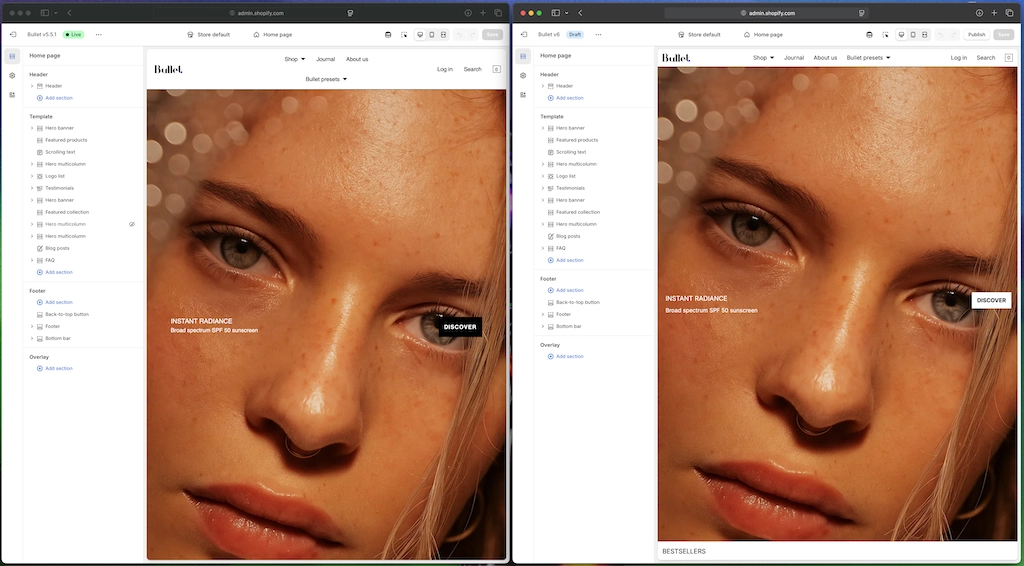
3. Use split-screen for easy rebuild
- Open your "current theme" in one browser tab
- Open
Bullet v6in the Theme Editor in a second tab - Use your "current theme" tab as a live reference — copy settings, images, colors, and section order as you go
- This is the most efficient way to rebuild without losing anything
🖼️ Screenshot
4. Recreate pages and templates
Some templates or sections may have new names or structures:
- Rebuild your Home page layout using the new sections
- Re-add Product and Collection page settings — explore new blocks like Specifications Table and Product Siblings
- Set up your Color Schemes in Theme Settings (see section below) before styling individual sections
- Rebuild your Header, Footer, and Navigation — nested footer menus are now supported
- Image with Text has been renamed to Media with Text — if you're looking for it, it's the same section with added video support
- Product Cards now have 4 design variants — choose your preferred layout early, as it affects how products appear across your store
5. Explore new features
Use this opportunity to enhance your store with what's new in v6:
- New presets: Bull, Nox, Etch, Aeris
- New sections: Promo Popup, Release Calendar, Store Locator, Social Media Grid, Media Reveal
- Cart enhancements: Cart Drawer, Cart Upsell, Cart Discount (apply codes directly in cart)
- Product page: Custom Details block, Specifications Table, new Product Card design variants
- Media: Videos now supported in Media with Text and Slideshow sections
- Header: Boxed (detached) header option, new Search dialog layouts
6. Preview and Test
Before publishing:
- Test cart flow, Quick Buy, filters, localization, and upsell sections
- Check responsive behavior on mobile and tablet
- Review all customizations across key page templates
- Use Shopify's theme preview mode — do not publish until you are satisfied
7. Publish Bullet v6
When your rebuild is complete and tested:
- Click Publish to publish the
Bullet v6theme - Your "current theme" remains available as a fallback — you can switch back at any time
New presets
The following presets have been redesigned and renamed. They are not visual clones of their predecessors — they are modernized counterparts built for the new architecture, with better design flexibility and performance.
| Previous Preset (v5) | New Preset (v6) | Notes |
|---|---|---|
| Vista | Aeris | Modernized jewelry & accessories aesthetic |
| - | Bull (NEW) | Sneakers focused preset |
| Midnight | Nox | Clothing preset, redesigned from the ground up |
| Quadrox | Etch | Art-focused preset with improved layout flexibility |
| Bullet (Default) | Bullet | Unchanged name, refreshed internals |
NOTE
New in v6: Four additional presets — Bull, Nox, Etch, and Aeris — are available alongside the refreshed Bullet preset.
Color schemes
New concept: Instead of setting global colors for the entire theme, you now assign a Scheme to each section individually.
This gives you granular control over your store's appearance and enables advanced branding layouts — contrasting color blocks, dark-light alternation, accent sections, and more.
How it works:
- Go to Theme Settings → Colors to define up to 5 color schemes
- Each scheme specifies a background, text, button, and accent color
- Every section in the Theme Editor now includes a Color Scheme dropdown
- Assign schemes per section rather than relying on a single global palette
TIP
Set up your color schemes before rebuilding individual sections — it will save significant time.
WARNING
Custom CSS from v5 or prior should not be copied over without review. Class names, variable names, and Liquid structure have all changed. Test any carry-over code carefully in a draft environment before publishing.
Frequently Asked Questions
Should I upgrade to v6?
That depends on your situation. If your current store is working well and you have custom code or a heavily configured setup, there's no urgent pressure to upgrade — your existing version will continue to work. If you want access to the new features, presets, and long-term improvements, v6 is worth the rebuild investment. Either way, read through this guide first so you know what's involved before deciding.
Should I use the "Update theme" button in Shopify admin to upgrade to v6?
No. Do not use the Update theme button. Because v6 is not backwards compatible, updating via that path will attempt to overwrite your current theme and may cause errors or corrupt your setup. Always install v6 as a fresh theme directly from the Shopify Theme Store.
I installed v6 and my layout, settings, and customizations are gone — did I lose everything?
No — but how you installed it matters. If you installed v6 fresh from the Shopify Theme Store, it simply added a new blank theme to your library. Your live store is untouched. The new v6 theme starts blank by design, as settings from previous versions are not compatible.
If you used the Update theme button in Shopify admin, your setup may have been overwritten. In that case, your duplicated v5 theme (if you made one before upgrading) is your only recovery option. Going forward, always install v6 as a fresh theme from the Theme Store and rebuild using this guide. Do not publish until your rebuild is complete.
I see an error in my v6 theme — is something wrong?
This depends on how you installed v6. If you used the Update theme button in Shopify admin, the errors may be caused by a failed or incompatible overwrite — in that case, revert to your duplicated v5 theme immediately and reinstall v6 fresh from the Shopify Theme Store instead.
If you installed v6 correctly as a new theme, errors are likely because the theme hasn't been configured yet. v6 starts as a blank slate and requires a full rebuild via the Theme Editor. Follow the rebuild steps in this guide before publishing.
Can I import my old theme settings?
No. The architecture changed in v6 and settings files from v5 or earlier are not compatible. You will need to rebuild your design manually using the split-screen approach described above.
Why wasn't this backwards compatible?
Bullet was built on a three-year-old foundation that needed a full modernization. Refactoring the codebase, updating the architecture, and adding features like Color Schemes required structural changes that couldn't be made incrementally. The result is a cleaner, faster theme — but it meant a clean break from the old settings structure.
Can I copy my custom CSS from v5?
Possibly, but not reliably. v6 uses a refactored codebase with updated class names, Liquid structure, and variable naming. Any custom CSS should be reviewed and tested carefully rather than copied over directly. If you are unsure, contact support and we can point you in the right direction.
Can I switch back to v5 after publishing v6?
Yes. Your duplicated v5 theme remains in your Shopify theme library. You can switch back at any time from Online Store → Themes.
A developer customized my theme — who is responsible for migrating their changes?
Any modifications made to core theme files by a developer are outside the scope of OpenThinking's support. Reapplying custom code after an update is always the responsibility of the developer who made those changes. Please reach out to them directly to have the work reviewed and reapplied in v6.
I received custom code from OpenThinking as a courtesy — will it work in v6?
Courtesy code snippets provided by our team are offered on an as-is basis and are not officially supported. We cannot guarantee they will work in v6, and we are not responsible for updating or adapting them to the new version. If you rely on courtesy code, you'll need to either reapply and test it yourself or work with a developer to have it reviewed and updated for v6.
I don't have time to rebuild my store — what are my options?
If you'd rather not spend time on the rebuild yourself, we recommend hiring a certified Shopify Expert to handle it for you. You can find one at Shopify Experts Marketplace.